You must be based in Ontario to enjoy all this online casino features
- PlayOJO Login:
Ontario Players
PlayOJO Ontario Login: Password Resets and Xpoint Errors
PlayOJO Ontario Login: Password Resets and Xpoint Errors
🕑 Updated: 5 November 2026
 Content Writer
 Content Manager
Visit
Support
- Software Providers


To log in to PlayOJO in Ontario, go to playojo.ca or open the PlayOJO app, choose LOGIN and enter your username or email and your password. On a computer, open the Xpoint app first, because PlayOJO uses it to confirm you are in Ontario.
Pros
 Username or email both accepted
Reset code by email or phone
Clear Xpoint error codes
Frozen games resume after log-in
Cons
 Computer needs the Xpoint app
Live chat only after log-in
C$5 fee after six months idle
How to Log In to PlayOJO in Ontario
PlayOJO accepts either your username or your email address in the log-in window. On a computer there is one extra step before it: the Xpoint location app has to be open.
- On a computer, open the Xpoint app first. On a phone, use the PlayOJO app or your browser with location turned on.
- Go to playojo.ca and choose LOGIN at the top right.
- Enter your username or email and your password.
- Choose LOGIN; your location is checked before you can play.
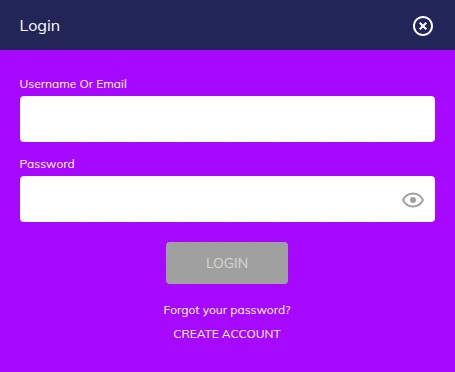
playojo.ca, Not the Alberta or Malta Site
The iGaming Ontario register lists one address for the brand, playojo.ca, run by Skill On Net Ltd under the AGCO. The playojo.com/ca address in Canadian search results forwards there when you open it from Ontario, while from outside Canada it serves a site regulated in Malta. PlayOJO also has an Alberta site, so check the address has no /ab/ in it and the footer names the AGCO.
One Account Per Person
Only one account is allowed per person, email address or mobile number, and it is for your use alone: an account found being used by someone else is closed. The terms also make you responsible for anything done with the correct username and password, or through a biometric log-in on your device.
Forgotten Password
PlayOJO does not keep a copy of your password, so it cannot tell you what it was; it can only help you set a new one.
- Choose Forgot your password? under the password box.
- Pick whether the code should go to your email or your phone.
- Enter the code you receive.
- Type the new password twice to confirm it.
If the code or other emails do not arrive, check the junk and spam folders, and add PlayOJO.com to your address book.
Why Live Chat Will Not Help Before You Log In
Live chat opens only once you are logged in, so a problem that stops you signing in has to go by email, to support.ontario@playojo.ca, or by phone, on +1 343-303-5151, the number given on the responsible gambling Get Help page. Chat hours on that page run from 06:00 to 00:00 GMT, which ends in the Ontario evening.
Xpoint: The Location Check on a Computer
iGaming Ontario requires every player to verify their location. On a computer, PlayOJO uses Xpoint Verify, an iGO-recognised service: download it once from install.xpoint.tech for Windows or Mac, then open it each time before you log in. On a phone, the app or the browser handles the check in the background.
Xpoint Error Codes and What They Mean
| Code | What it means | What to do |
|---|---|---|
| 4000 | Not enough data to place you | Turn location sharing on; make sure several Wi-Fi networks are in range |
| 4001 | You are outside Ontario | Play once you are back in the province |
| 4003 | Account flagged for activity outside Ontario | Contact support if that is wrong |
| 3000 | No Wi-Fi detected | Switch Wi-Fi on, with several networks in range |
| 3001 | Old version of the location app | Download the latest Xpoint |
| 3002 | VPN, proxy or IP anonymizer detected | Turn them off and try again |
| 3003 | Prohibited software detected | Uninstall it, then relaunch Xpoint |
| 3004 | Remote access program, or a rooted or jailbroken device | Remove the program or use another device |
| 3005 | Proxy settings on | Turn off proxies in the browser and the system, then relaunch Xpoint |
| 3006 | Device time does not match your time zone | Correct the clock and try again |
PlayOJO is clear about VPN and proxy tools such as HideMeVPN, Witopia or OpenVPN: even when they are not active, you will not be allowed to play until they are uninstalled.
Location on Your Phone
In the app, allow location in the phone’s settings: on iPhone, Settings > Privacy > Location Services, then PlayOJO; on Android, Settings > Apps > PlayOJO > Permissions > Location. Keep the app updated, because PlayOJO recommends the latest version for reliable geolocation.
The PlayOJO App
The iPhone app is PlayOJO Canada: Online Casino, published by Skill On Net Ltd, and it needs iOS 15.0 or later; there is an Android app on Google Play too, and both are linked from every page of playojo.ca. You can also skip the app and play in the phone’s browser. The log-in is the same in all three, and our PlayOJO app guide covers installing it and its location settings. Our Ontario casino apps compared guide sets it against the others.
Keeping Your PlayOJO Account Secure
- Use a password nobody could guess, and never share it or your username.
- Keep your mobile number and email current, since password codes go to one or the other.
- If a game freezes, closing the browser and logging back in brings it back where it stopped; your funds and rounds are kept.
- Log in now and then: six months without accessing the account makes it inactive, and PlayOJO can then charge C$5 a month from the balance until you return.
After 48 months with no log-in, the account becomes dormant: it is frozen, and you have to go through a reactivation process to get back in. PlayOJO says it will contact you about any money left in it, and you can ask for it to be withdrawn at any time.
New to PlayOJO? Opening an Account
- Choose JOIN NOW or CREATE ACCOUNT in the log-in window.
- Enter your name, date of birth and address as on your ID, with Ontario as your province, plus a username, password, mobile number, email and occupation.
- Verify your mobile number with the one-time password PlayOJO sends to it.
- Upload ID under My Account > Upload Documents if PlayOJO cannot verify you automatically.
PlayOJO aims to check documents within 12 hours; if you have heard nothing after 48 hours, contact support. Documents go only through the upload tool, not by email. You must be 19 or older and in Ontario, and the minimum deposit is $10. The PlayOJO Ontario review covers the games, payments and support in full.
FAQ’s – Frequently Asked Questions
- How do I log in to PlayOJO in Ontario?
Go to playojo.ca or the PlayOJO app, choose LOGIN and enter your username or email and your password. On a computer, open the Xpoint app first, because it confirms you are in Ontario.
- Do I need Xpoint to play PlayOJO on a computer?
Yes. PlayOJO verifies your location on a computer with Xpoint Verify, which you download for Windows or Mac and open each time before logging in. On a phone, the check runs in the background.
- What does Xpoint error 4000 mean at PlayOJO?
Xpoint did not pick up enough data to place you. Turn location sharing on and make sure several Wi-Fi networks are in range, then try again. Error 4001 means you are outside Ontario.
- How do I reset my PlayOJO password?
Choose Forgot your password? under the password box, pick email or phone for the code, enter it and type the new password twice. PlayOJO keeps no copy of your old one.
- Why can I not use PlayOJO live chat to fix a log-in problem?
Chat opens only after you log in, so it cannot help with a problem that stops you signing in. Before that, email support.ontario@playojo.ca or call +1 343-303-5151; chat itself runs from 06:00 to 00:00 GMT.
PlayOJO Ontario Login: Key Points
Log in at playojo.ca or in the PlayOJO app with your username or email and your password. On a computer, open Xpoint before you log in; its error codes tell you exactly what blocked the check.
A forgotten password is reset with a code sent to your email or phone. Chat only opens after log-in, so when you are locked out, email or phone support is the route.